Inviting and approving publishers
Publishers drive the traffic. Add them directly or approve their applications, then grant campaign access.
Updated 2026-06-09
Publishers are the partners who send traffic to your campaigns. Each one gets a unique tracking ID baked into their links, so every click and conversion is attributed automatically — no UTM hygiene required.
There are two ways a publisher joins your network: you add them directly, or they apply and you approve them.
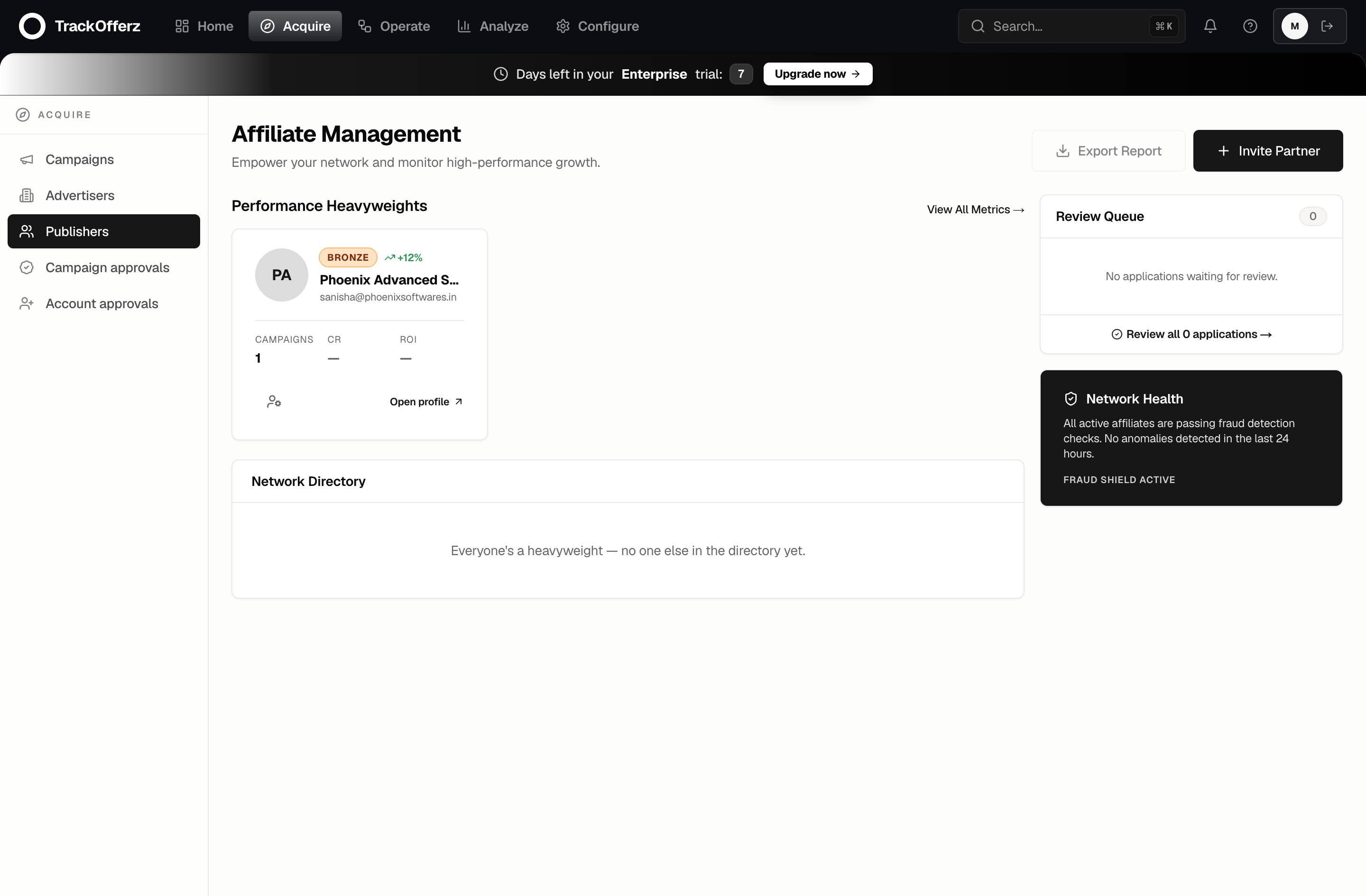
Both live under Campaigns → Publishers.
Option A — Add a publisher directly
Use this when you already know the partner and have their details.
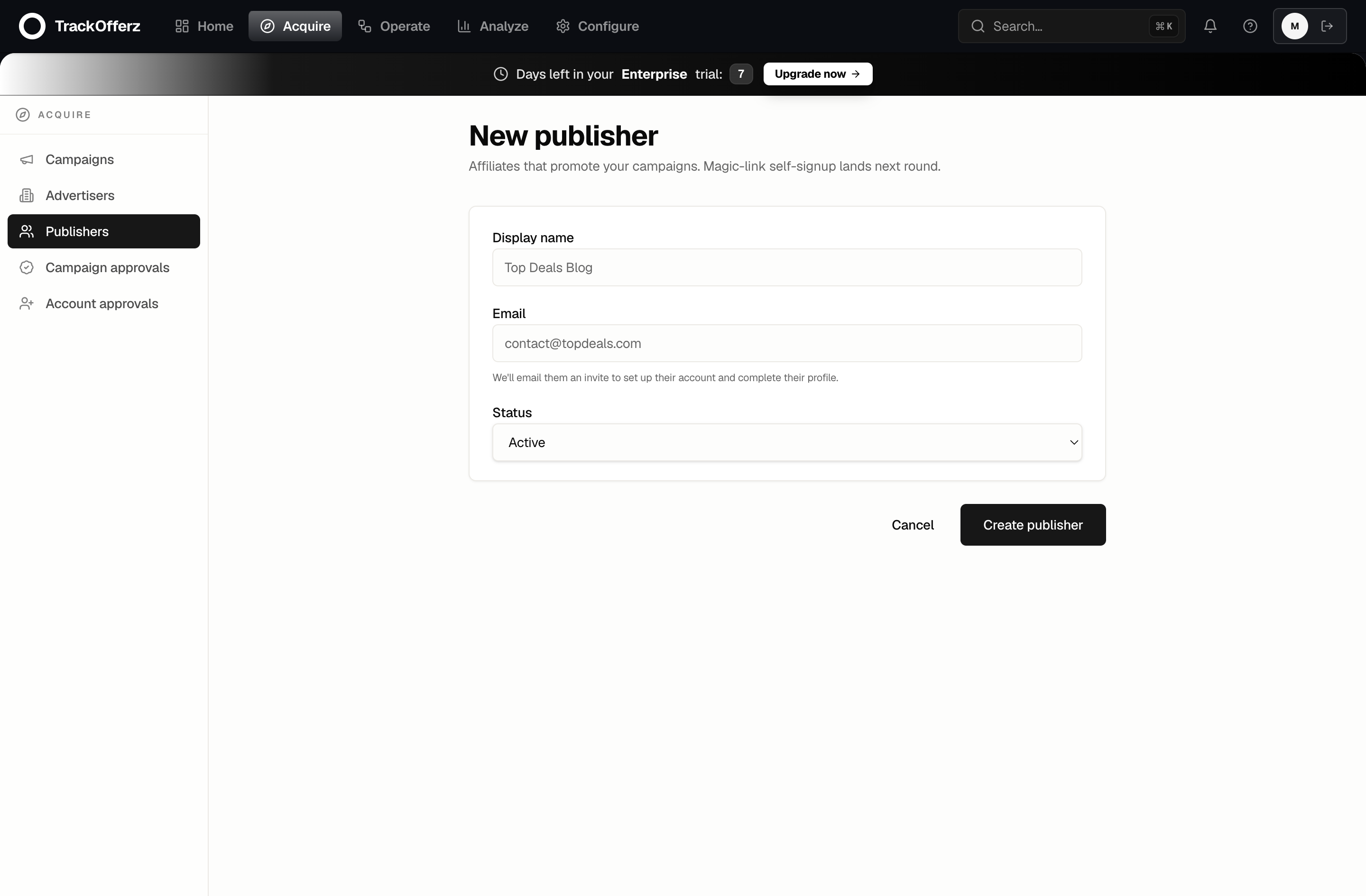
- Click Invite Partner in the top-right of the publishers list.
- Display name — how the publisher appears in your panel, e.g. Top Deals Blog.
- Email — where their login and offer notifications go.
- Status — set Active to let them start immediately, or Pending review to hold them until you've vetted them.
- Click Create publisher. They receive an email to set a password and sign in at your network's URL.
Option B — Approve an application
Publishers can self-apply at your network's public signup page ({your-slug}.trackofferz.com/signup). Applications arrive as Pending publishers in the same list, plus under Campaigns → Publisher sign-ups.
- Open the pending publisher to review their details — traffic sources, promotion methods, contact info.
- If they're a fit, set their status to Active. If not, leave them Pending or set Suspended.
- Once active, they can log in but still can't send traffic until you grant them campaign access (below).
Grant campaign access
A publisher being active isn't enough — they also need to be approved on a specific campaign before their tracking links work. This two-layer model lets you keep some offers open and others invite-only.
- Decide the campaign's visibility (set when you create the campaign). Public campaigns are available to every active publisher; private ones require explicit approval.
- For private campaigns, approve the publisher under Campaigns → Campaign applications (or from the campaign's own publishers tab).
- The publisher can now generate a tracking link for that campaign and start sending traffic.
A click on a tracking link for a campaign the publisher isn't approved on is rejected at the edge. If a partner reports their links 404 or bounce, the first thing to check is campaign approval — not the link itself.
What the publisher does next
Once approved, the publisher works entirely in their own portal:
- They generate a tracking link per campaign.
- They optionally set a global postback so their own systems hear about conversions.
- They watch their stats and request payouts.
You can see exactly what they see using Impersonate from the publishers list — handy for support.
Next, verify your tracking end to end before the traffic is real.